BasicMicro Motion Studio installs from a single signed setup.exe downloaded from the BasicMicro downloads page. Run the installer, follow the setup wizard, and the software is ready to configure and test RoboClaw and MCP motor controllers. No separate USB driver installation is required on Windows 10 or 11.
Motion Studio is BasicMicro’s free Windows application for configuring, tuning, and testing RoboClaw and MCP motor controllers. It is used to set control modes, adjust battery and current limits, tune PID parameters, and exercise motors before writing any code. This guide covers installing Motion Studio and connecting a controller for the first time.
Motion Studio currently supports Windows 10 and 11 only.
What You Need
- (1) Computer running Windows 10 or 11
- (1) Internet connection to download the installer
How Do You Install Motion Studio?
- Download Motion Studio from the BasicMicro downloads page.
- Run the downloaded setup.exe file. The installer is digitally signed by Basicmicro.com, Inc. The Motion Studio setup wizard opens.
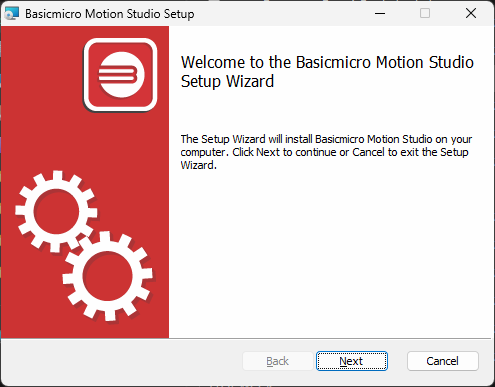
Figure 1: The Motion Studio setup wizard after running setup.exe. - Follow the setup wizard’s prompts to complete the installation, then close the wizard. Motion Studio is now installed and can be opened from the Start menu.
No separate USB driver installation is required. The drivers are included in the Motion Studio install, and Windows 10 and 11 include standard USB serial drivers. If Windows does not recognize your controller over USB, see USB Driver and BasicMicro Motion Studio Installation for manually installing the USB driver.
How Do You Connect a Controller?
- Power the controller from its main power source, then connect a USB cable between the controller and the computer.
RoboClaw and MCP controllers are not USB powered devices; the USB cable does not supply power to them. Power the controller from its main power source before connecting the USB cable.
- Open Motion Studio. The controller appears in the “Attached Devices” list in the upper left of the application. Select it and click “Connect Selected Unit” to begin configuring the controller.
Next Steps
With Motion Studio installed, the Dual Channel RoboClaw Quick Start Guide walks through wiring and testing a controller from start to finish. For a tour of the application itself, see Introduction to Motion Studio.