
BasicMicro’s three official libraries each install with standard tools: the Arduino library through the Arduino IDE’s Library Manager, the Python library with pip, and the ROS 2 driver by cloning its repository and running the included install script. Example code for every library can also be downloaded from GitHub as a ZIP file.
BasicMicro publishes three official libraries for controlling its motor controllers: the Basicmicro Arduino library, the Basicmicro Python library, and the Basicmicro ROS 2 driver. All three are hosted on GitHub at github.com/basicmicro, but a GitHub account is never required; each library installs through the normal tools for its platform, summarized below.
| Library | Platforms | Install method |
|---|---|---|
| basicmicro_arduino | Arduino, ESP32, ESP8266 | Arduino IDE Library Manager |
| basicmicro_python | Python 3 on Raspberry Pi, Linux, Windows, macOS | pip |
| basicmicro_ros2 | ROS 2 on Ubuntu Linux | Clone and run the install script |
Installing the Arduino Library
The Basicmicro Arduino library (Library Manager name “Basicmicro”) supports Arduino, ESP32, and ESP8266 boards and installs entirely inside the Arduino IDE:
-
Open the Arduino IDE and choose Sketch > Include Library > Manage Libraries to open the Library Manager.
-
Search for “Basicmicro” in the Library Manager’s search field.
-
Click Install on the Basicmicro library entry.
The library’s example sketches install along with it and appear in the IDE under File > Examples > Basicmicro, so no separate download is needed. Using the RoboClaw Arduino Library covers setting up and using the library in detail.
Installing the Python Library
The Basicmicro Python library supports Python 3 and runs on the Raspberry Pi, Linux, Windows, and macOS. Install it from PyPI with pip:
pip install basicmicroUsing the RoboClaw Python Library covers connecting to a controller and using the library’s functions.
Installing the ROS 2 Library
The Basicmicro ROS 2 driver installs from its GitHub repository. ROS 2 development already happens in a Git-equipped Linux environment, so cloning the repository is the normal path here. Clone the repository and run the included installer:
git clone https://github.com/basicmicro/basicmicro_ros2.git
cd basicmicro_ros2
./install.sh
The install script checks for and installs ROS 2 if needed, pulls in the Basicmicro Python library dependency, sets up a ROS 2 workspace with the driver, builds the package, and configures serial port permissions. The basicmicro_ros2 repository README also documents a manual installation procedure.
Downloading Example Code from GitHub
Every BasicMicro library and its example code lives on GitHub at github.com/basicmicro. The Arduino examples install with the library itself, but the Python example scripts can be browsed on GitHub or downloaded separately. No Git software or GitHub account is needed; any repository can be downloaded as a ZIP file with a web browser:
-
Using a web browser, navigate to the desired repository, starting from BasicMicro’s GitHub page.
-
Click the green button labeled “Code”.
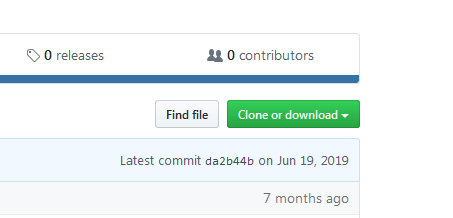
Figure 1: The dialog used to download a zipped version of the repository. -
In the dialog that opens, click “Download ZIP”.
-
Move the downloaded ZIP file to a useful location and unzip it to use the code.
Next Steps
With a library installed, these guides put it to work:


